If you have ever tried to claim a toll expense for work, or just wanted to know where your FASTag balance actually went, you have probably gone looking for your ICICI FASTag statement. It sounds like a small thing until you need it, and then it is the only document that matters.
This guide walks through what an ICICI FASTag statement contains, how to download one, why the numbers on it sometimes look confusing, and what to do if it will not load.
What Is an ICICI FASTag Statement?
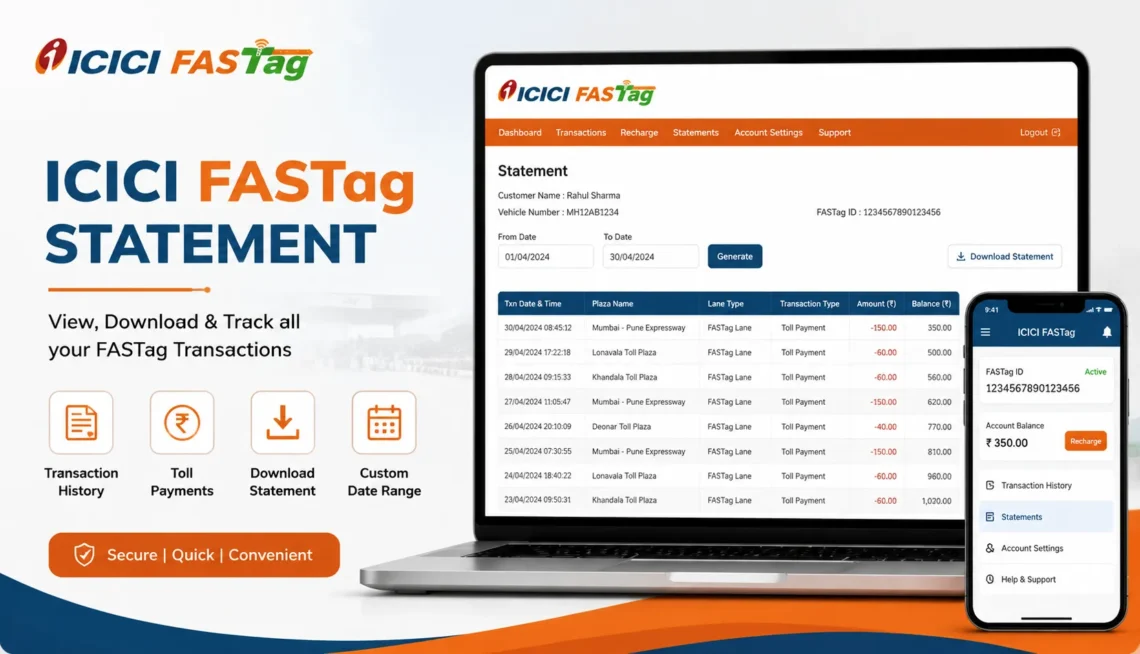
An ICICI FASTag statement is a record of everything that has happened in your FASTag account over a chosen period: toll deductions, recharges, refunds, and any adjustments made to your balance. Think of it as the bank statement equivalent for your toll wallet.
Most people need it for one of these reasons:
- Reimbursement from an employer for business travel
- Checking whether a toll deduction was correct
- Personal budgeting or expense tracking
- Proof of payment during a dispute with a toll plaza
- General record-keeping for a commercial vehicle fleet
If you are still setting up your account or want to understand how the tag itself works before diving into statements, our overview of ICICI FASTag covers the basics.
What Information Appears on the Statement
A typical FASTag statement lists:
- Date and time of each transaction
- Toll plaza name (for toll deductions)
- Transaction type — recharge, deduction, refund, or reversal
- Amount debited or credited
- Closing balance after each transaction
- Vehicle number linked to the tag
Not every statement format shows all six fields. Some exports are simplified and only show date, amount, and running balance. If you need a plaza-level breakdown for reimbursement purposes, check whether the download option offers a detailed view before settling for the summary one.
How to Download Your ICICI FASTag Statement
The exact screens can shift slightly as ICICI Bank updates its platform, but the general path stays the same:
- Log in to your official ICICI FASTag account through the ICICI Bank website, iMobile app, or FASTag portal.
- Open the FASTag section of your dashboard.
- Go to transaction history or statement.
- Select the date range you need — most platforms let you pick a custom start and end date.
- Choose to view it on screen or download it as a PDF or Excel file.
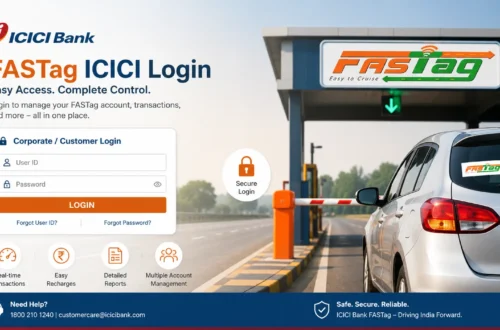
If you have not logged in before or your login keeps failing, our FASTag login ICICI Bank guide walks through the access steps in more detail.
A small tip that saves a lot of frustration: pick a date range that is not longer than three months at a time. Some accounts time out or fail to generate the PDF when the range is too wide, especially for vehicles with heavy daily toll usage.
Statement vs. Transaction History: What’s the Difference?
People often use these two terms interchangeably, but they are not quite the same thing.
Transaction history is the live, on-screen list of everything happening in your account. You scroll through it, filter it, and check it in real time.
Statement is usually a static export of that same data for a fixed period, formatted as a document you can save, print, or forward to an accounts department. If you just want to glance at recent activity without downloading anything, the transaction history view is faster.
Why Your Statement Might Not Match What You Expected
This is the part that generates the most confused messages to customer support. A few common causes:
- Delayed toll postings: Some toll plazas take a few hours to sync their deduction with your bank’s system, so a toll you paid this morning might not show until later in the day.
- Pending vs. confirmed transactions: A recharge can show as pending before it reflects in your closing balance.
- Reversed or duplicate deductions: If a scanner reads the tag twice at one plaza, a reversal usually follows within a day or two, but it will still appear as two line items on the statement.
- Minimum balance deductions or annual charges: Some of these get bundled into the statement without a plain-language label, which makes them look like unexplained toll charges.
If a deduction genuinely looks wrong and does not correct itself after a couple of days, keep the transaction ID, date, time, and toll plaza name ready and raise it with support. Our ICICI FASTag customer care page lists what to have on hand before you call.
Using Your Statement to Track Low Balance Issues
A statement is also a decent early-warning tool. If you notice your closing balance dropping faster than usual, it is worth checking your current balance directly rather than waiting for the next statement cycle. Our guide on ICICI FASTag balance check explains the quickest ways to do that so you are not caught out at a toll booth.
And if the statement shows your balance running low, recharging before your next trip avoids the awkward moment of the barrier not lifting. Details on that process are in our FASTag recharge ICICI guide.
Downloading Statements for Business or GST Purposes
Fleet owners and business travelers often need statements for a full financial year, not just a month. A few things help here:
- Download statements in smaller chunks (monthly or quarterly) rather than one full-year request, since large exports are more likely to fail or time out.
- Keep both the PDF and any Excel/CSV export if the platform offers both; accounts teams usually prefer the spreadsheet format for reconciliation.
- Cross-check the vehicle number on each statement if you manage more than one FASTag, since it is easy to download the wrong vehicle’s file by mistake.
What to Do If the Statement Page Won’t Load
If the FASTag statement section is not opening or the download button does nothing, try these before assuming it is a bigger problem:
- Refresh the page or log out and log back in.
- Clear the app cache if you are using the mobile app.
- Try a different browser or the official app instead of the browser, or vice versa.
- Shorten the date range you are requesting.
- Check your internet connection, particularly on mobile data.
- If none of that works, contact ICICI Bank support directly rather than repeatedly retrying, since some server-side issues need to be fixed on their end.
Safety Reminder
A FASTag statement contains your vehicle number and payment history, so treat it the way you would treat any bank document. Only download it from the official ICICI Bank website or app, never share the file with unknown numbers claiming to offer “FASTag help,” and avoid entering your OTP anywhere outside the official login screen. This website is an independent guide and not the official ICICI Bank platform.
Frequently Asked Questions
- How can I download my ICICI FASTag statement online?
Log in to your official ICICI FASTag account, go to the transaction history or statement section, choose your date range, and download it as a PDF or Excel file.
- Can I get an ICICI FASTag statement for more than a year?
Most platforms limit the range you can request in a single download. For long periods, it is more reliable to download the statement in smaller chunks, such as month by month.
- Why is a toll deduction missing from my statement?
Some toll plazas take time to post their deduction to your account. If it does not appear after a day or two, check with customer support and keep your transaction details ready.
- Is the FASTag statement the same as the bank account statement?
No. The FASTag statement covers only your toll wallet’s activity, not your full bank account. If your FASTag is linked to a savings account, that account’s statement is separate.
- What should I do if my statement shows a wrong deduction?
Note the date, time, toll plaza name, and amount, then raise the issue with official ICICI Bank support rather than the toll plaza itself.
Final Thoughts
Your ICICI FASTag statement is a straightforward but genuinely useful document once you know where to find it and how to read the line items. Download it in reasonable date ranges, keep an eye on your balance between statement cycles, and go to official ICICI Bank channels for anything that does not look right. For anything else related to your account, from checking your balance to fixing a login problem, the rest of this website covers those steps in plain terms.